
Laptop Freezing or Not Responding? Causes and Fixes
Is your laptop freezing, becoming unresponsive, or refusing to open programs when you need them? A frozen laptop can be caused by something relatively simple, such as too many applications running, low available memory or a Windows process using excessive resources. In other cases, repeated freezing can point to overheating, storage problems, damaged system files or failing hardware.
This guide explains what you can check yourself before paying for a repair and how to recognise when the problem needs a closer look.

Quick Answer: Why Is My Laptop Freezing?
A laptop may freeze because the processor, memory or storage is under heavy load, the system is overheating, Windows or a driver has encountered a problem, an application has stopped responding, malware is affecting the system, or the laptop has a hardware fault.
Start by checking: whether the entire laptop is frozen or only one application, Task Manager resource usage, available storage space, recent Windows or driver changes, overheating symptoms and whether the problem happens repeatedly.
If your laptop repeatedly freezes even after basic troubleshooting, it is worth investigating the underlying cause rather than repeatedly forcing it to shut down.
What You’ll Find in This Guide
- 1. Check Whether the Entire Laptop Is Frozen
- 2. Check CPU, Memory and Disk Usage
- 3. Reduce Unnecessary Programs Running in the Background
- 4. Check Your Storage Space
- 5. Check Windows and Driver Updates
- 6. Check for Overheating
- 7. Check for Malware and Unwanted Software
- 8. Check Windows System Files
- 9. Consider Possible Hardware Problems
- 10. When Should You Get the Laptop Checked?
- Should You Repair or Replace the Laptop?
- Frequently Asked Questions
1. Check Whether the Entire Laptop Is Frozen
Before assuming that your laptop itself has failed, determine whether Windows is actually frozen or whether just one application has stopped responding.
For example, you may have a browser tab that has stopped responding while Windows itself is still working normally.
Try these quick checks
- Move the mouse and see whether the pointer responds.
- Press Ctrl + Alt + Delete.
- Try pressing Ctrl + Shift + Esc to open Task Manager.
- Try switching to another open application.
- If you are using an external keyboard or mouse, check whether it still responds.
If Task Manager opens, Windows itself may still be functioning even though one application has stopped responding.
If only one application is frozen, you may be able to close that application through Task Manager without restarting the entire laptop.
2. Check CPU, Memory and Disk Usage
One of the most useful places to investigate a freezing Windows laptop is Task Manager. It can show whether a particular application or Windows process is consuming an unusually large amount of CPU, memory or disk resources.
How to open Task Manager
Press Ctrl + Shift + Esc.
Select Processes if it is not already selected. You can then look at the CPU, Memory and Disk columns.
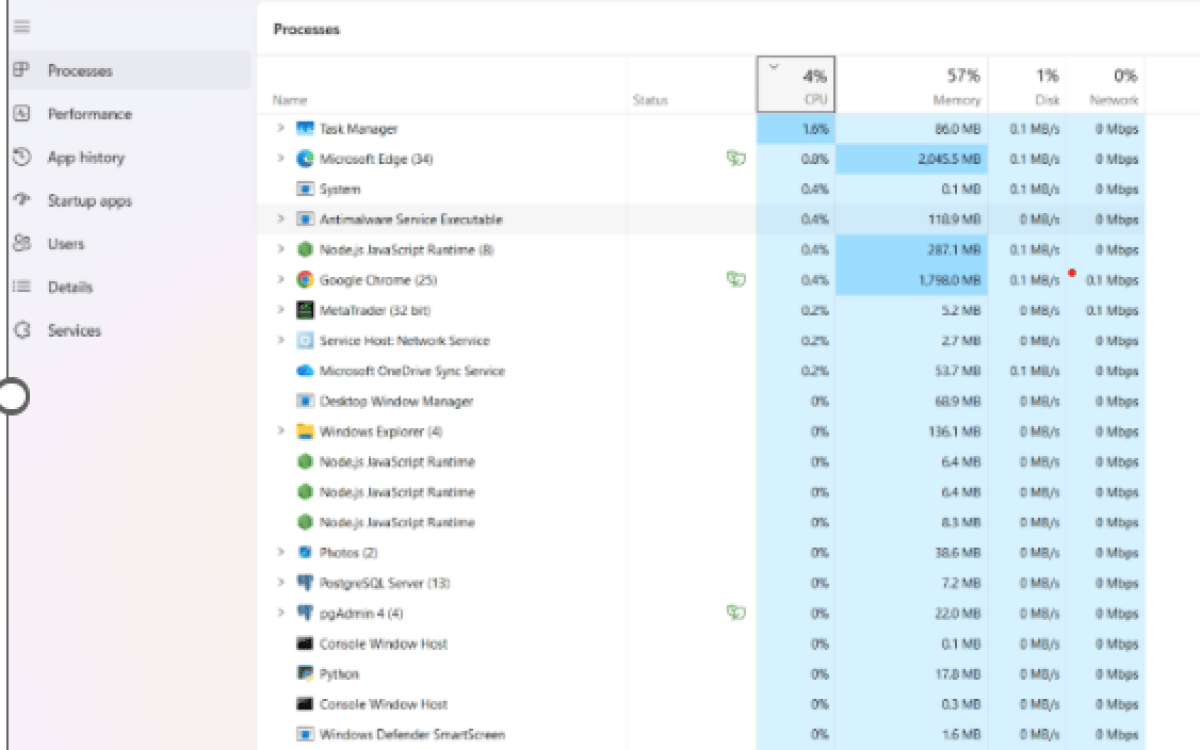
What should you look for?
- Very high CPU usage: a process may be performing an intensive task.
- Very high memory usage: you may have too many applications or browser tabs open.
- Very high disk usage: Windows, updates, applications or storage problems may be contributing.
Do not automatically end a process simply because its name looks unfamiliar. Some Windows processes are essential to the operating system.
If one particular application repeatedly causes the laptop to become unresponsive, investigate that application before disabling unrelated Windows processes.
3. Reduce Unnecessary Programs Running in the Background
Some applications automatically start whenever Windows boots. Over time, a laptop can accumulate many programs that you do not actually need running in the background.
This can increase startup time and consume memory and processor resources.
Check startup applications
- Open Task Manager.
- Select Startup apps.
- Review the applications listed.
- Identify programs you recognise but do not need to start automatically.
- Right-click an appropriate application and select Disable.
Disabling a startup application does not normally uninstall it. It simply prevents the program from automatically launching when Windows starts.
If the laptop becomes noticeably more responsive after reducing unnecessary startup applications, excessive background software may have been contributing to the problem.
4. Check Your Storage Space
Windows needs working space on the system drive for updates, temporary files, applications and normal operating-system activity.
If your storage drive is almost full, it is worth freeing space before assuming that the laptop requires a hardware repair.
Check available storage
- Open Settings.
- Select System.
- Select Storage.
- Review how much space is available on the main Windows drive.

Look for large temporary files, applications you no longer use, old downloads and other unnecessary data.
If you are unsure whether a particular folder or file is safe to remove, do not delete it simply because it is large.
Still Freezing After Trying These Checks?
If your laptop continues to freeze, the problem may require a closer look at Windows, applications, storage health, overheating or the hardware itself.
Gekel Edge offers a free remote diagnosis to help identify what is causing the problem before you decide whether a repair is needed.
5. Check Windows and Driver Updates
A laptop may begin freezing after a Windows update, driver change, application installation or other software change. In other cases, installing pending updates can resolve known bugs or compatibility problems.
Check Windows Update
- Open Settings.
- Select Windows Update.
- Check for available updates.
- Install appropriate updates.
- Restart the laptop when required.

If the freezing started immediately after a specific driver, application or system change, that timing is useful information when troubleshooting the problem.
Avoid downloading random driver packages from unknown websites. Where possible, use Windows Update or the laptop manufacturer’s official support resources.
6. Check for Overheating
Heat can cause a laptop to slow down, become unstable or shut itself down. If your laptop freezes more often during demanding tasks, overheating is one possibility worth investigating.
Possible signs of overheating include:
- The cooling fan becomes unusually loud.
- The laptop becomes very hot around the vents or underside.
- Performance drops during demanding tasks.
- The laptop freezes or shuts down after running for a while.
- The problem is worse when the laptop is used on a bed, sofa or other soft surface.
Make sure the laptop’s ventilation openings are not blocked. Use it on a hard, stable surface where air can circulate properly.
Internal dust buildup, a failing cooling fan or degraded thermal material can require physical inspection and servicing.
7. Check for Malware and Unwanted Software
Malware is not the most likely explanation for every freezing laptop, but it should be considered when freezing is accompanied by other unusual behaviour.
Warning signs can include:
- Unexpected pop-ups.
- Unwanted browser redirects.
- Unknown applications appearing on the computer.
- Sudden unexplained performance problems.
- Browser extensions you do not remember installing.
- Security warnings or unusual account activity.
Use the security tools already available in Windows and keep your security software up to date. Avoid downloading supposed “PC cleaner” or “virus removal” programs from suspicious advertisements.
If you suspect the laptop has malware, avoid entering sensitive passwords or banking information on the affected device until you have assessed the situation.
8. Check Windows System Files
Damaged or corrupted Windows system files can sometimes contribute to crashes, instability and unexpected behaviour.
Windows includes built-in tools that can check and repair certain system-file problems.
Using System File Checker
If you are comfortable using Command Prompt with administrator privileges, you can run:
sfc /scannowAllow the scan to complete and read the result it provides. Do not close the Command Prompt window while the scan is running.
If system-file corruption is detected, the result can provide a useful clue about why Windows is behaving unexpectedly.
9. Consider Possible Hardware Problems
If your laptop continues freezing despite software troubleshooting, the problem may be hardware-related.
Potential causes can include a failing storage drive, faulty memory, overheating components, motherboard problems or other hardware faults.
Hardware problems become more likely when:
- The laptop freezes repeatedly with no obvious software trigger.
- The problem occurs shortly after startup.
- The laptop freezes even when very few applications are open.
- There are unusual noises from a mechanical hard drive.
- The laptop has suffered a drop, liquid spill or other physical damage.
- The system shows other signs of instability or unexpected shutdowns.
- Windows reports storage or memory-related errors.
If you suspect that the storage drive is failing and the laptop contains important files, prioritise your data rather than repeatedly restarting or experimenting with potentially risky repairs.
10. When Should You Get the Laptop Checked?
Occasional application problems are not necessarily a sign that your laptop needs repair. Repeated freezing, however, deserves investigation.
Consider getting professional help if:
- The laptop freezes several times a day.
- It freezes immediately after startup.
- Basic troubleshooting has not made any difference.
- The laptop is overheating or shutting itself down.
- You suspect a failing hard drive or SSD.
- You cannot determine which application or process is causing the problem.
- The problem started after a significant Windows, driver or hardware change.
- Your important files are stored on the affected laptop and you are concerned about data loss.
What a proper diagnosis should look at
A useful diagnosis should not simply assume that “the laptop is old” or recommend replacing it immediately. The technician should investigate the symptoms and determine whether the cause is software, configuration, performance, overheating, storage, memory or another hardware issue.
Common Freezing Symptoms and What They May Indicate
| Symptom | Possible Cause | What to Check |
|---|---|---|
| One application freezes | Application problem | Task Manager, application updates, reinstall if appropriate |
| Whole laptop becomes slow | High CPU, memory or disk usage | Task Manager |
| Freezes after extended use | Possible overheating | Temperature, fans and ventilation |
| Freezes with unusual drive behaviour | Possible storage problem | Drive health and backups |
| Freezing began after an update | Software or driver compatibility | Recent updates and drivers |
| Freezing plus pop-ups or redirects | Possible unwanted software or malware | Security scan and installed software |
What If the Laptop Is Completely Frozen?
If Windows will not respond to keyboard or mouse input and you cannot access the normal shutdown options, you may eventually have to perform a forced shutdown.
Before doing this, give the laptop a little time if it appears to be performing a demanding task. A system that looks frozen may occasionally be processing something in the background.
If there is genuinely no response and you have no other option, holding the power button until the laptop switches off may be necessary.
Should You Repair or Replace a Freezing Laptop?
Freezing does not automatically mean that your laptop needs replacing.
If the cause is unnecessary software, malware, a Windows configuration issue, overheating, insufficient memory or a storage upgrade opportunity, repair or maintenance may be a sensible option.
Replacement may make more sense when the laptop has several unrelated hardware problems, repair costs are disproportionately high, or the hardware is no longer suitable for the work you need it to perform.
The important thing is to identify the cause first. Replacing a laptop without diagnosing the original problem can leave you spending money unnecessarily.
For more information about the types of support available, see our IT Support Services.
More Help With a Slow or Unresponsive Laptop
If your laptop is freezing because it has become generally slow, our other troubleshooting guide may also help:
Is Your Laptop Still Freezing?
You do not have to guess whether the problem is software, overheating, storage, memory or something else.
Gekel Edge can start with a free remote diagnosis to help identify the likely cause and determine what should happen next.
We use a remote-first approach where possible. If the problem can be diagnosed and fixed remotely, there may be no need for an onsite visit.
Frequently Asked Questions
Why does my laptop keep freezing?
Common possibilities include high CPU, memory or disk usage, too many background applications, overheating, Windows or driver problems, malware, storage issues or failing hardware. The exact cause needs to be determined from the symptoms and system behaviour.
Why is my laptop not responding but the mouse still moves?
This can happen when an individual application has stopped responding while Windows itself is still working. Try opening Task Manager with Ctrl + Shift + Esc and identify the application using excessive resources.
Can low storage cause a laptop to freeze?
Very limited free storage can contribute to poor Windows performance and other problems. Check the available space on the Windows system drive and remove unnecessary data safely.
Can overheating make a laptop freeze?
Yes. Excessive heat can cause performance problems and instability. If freezing is accompanied by unusually loud fans, excessive heat or unexpected shutdowns, overheating should be investigated.
Should I keep restarting my laptop when it freezes?
Restarting may temporarily clear a software problem, but repeated freezing should not simply be treated by repeatedly restarting the computer. If the problem keeps returning, investigate the underlying cause.
Should I replace my laptop if it keeps freezing?
Not necessarily. A diagnosis may reveal a software issue, overheating problem, storage issue, memory limitation or another repairable problem. Replacement should be considered after the cause and likely repair cost are understood.
Can Gekel Edge diagnose a freezing laptop remotely?
Many software and performance-related problems can be investigated remotely. Gekel Edge starts with a remote diagnosis where appropriate and can determine whether the issue can be resolved remotely or whether physical inspection is required.
About Gekel Edge
Gekel Edge provides practical IT support and computer troubleshooting for home users and small businesses in Glasgow and surrounding areas.
Our approach is simple: understand the problem first, diagnose it properly and recommend the most appropriate solution rather than assuming that every computer problem requires a new device.
Where possible, support can be provided remotely. If the problem cannot be resolved remotely, onsite support may be considered.
Last reviewed: 13 September 2026